ChessPuzzler's chess board theme editor is a powerful tool that allows you to customize the look and feel of your board to suit you as you solve our puzzles.
In this article we will be explaining how to use the theme editor, as well as the theme marketplace, where members can use other user's themes.
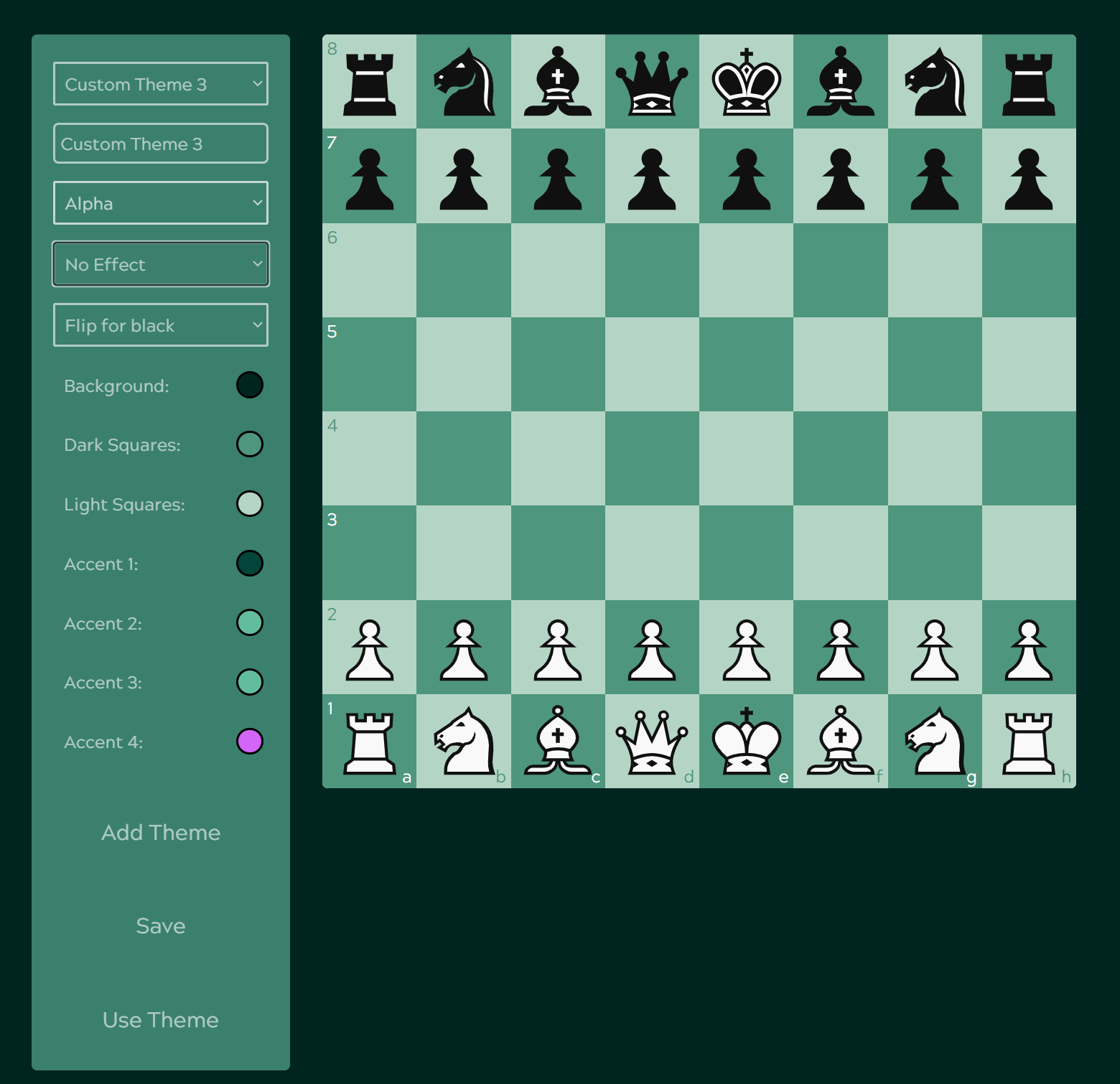
Where is the theme editor?
The theme editor can be found in the profile page dropdown. In addition, you can edit board themes on the fly whilst solving puzzles by clicking the 'Theme' dropdown on the top right of the chess board.
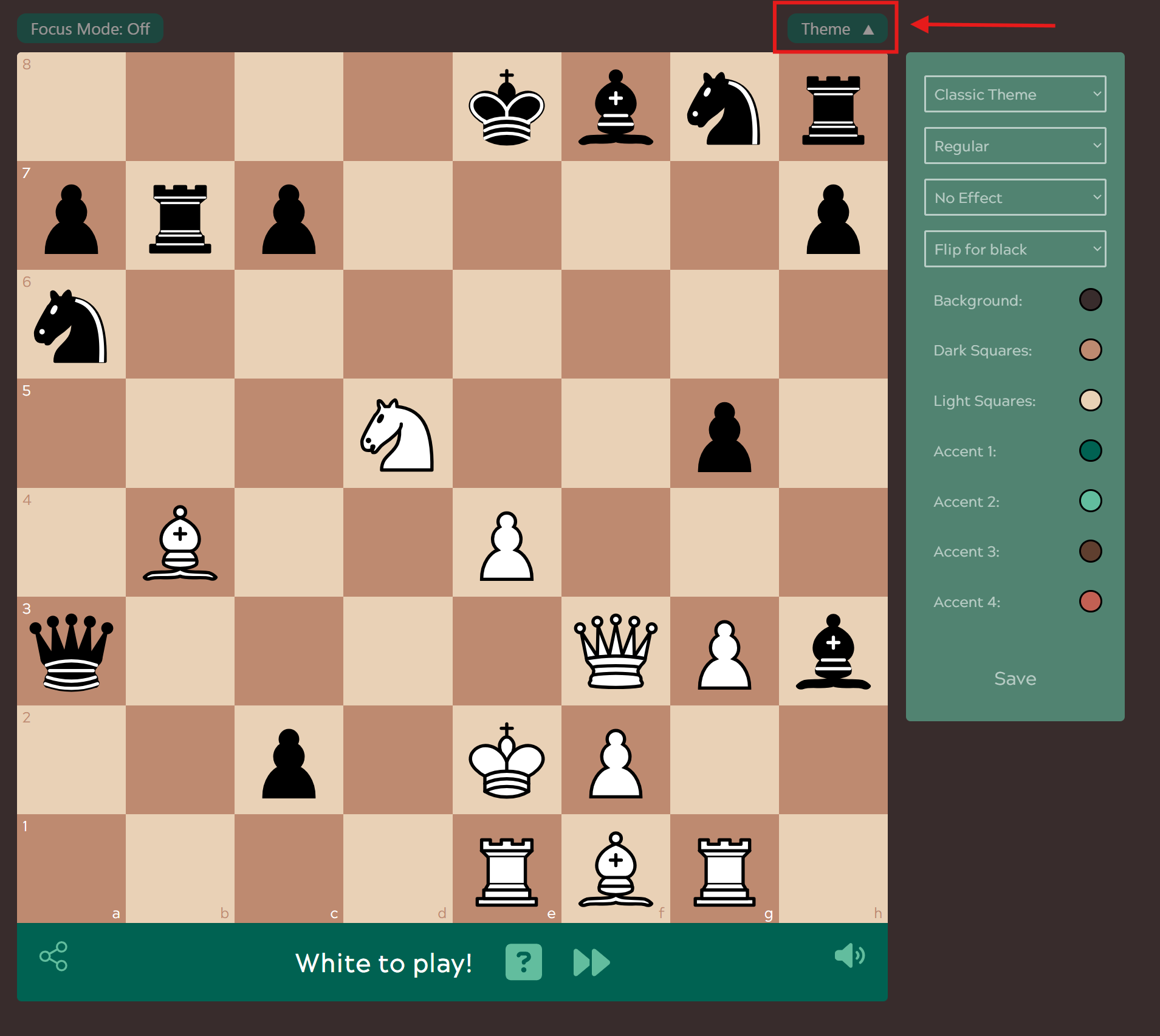
How do I make my own theme?
To start making your own themes, choose the top dropdown option and select a custom theme. The non-custom themes are site default themes which can be used, but not edited. You can rename your custom theme to whatever you want in the input below the dropdown.
I've selected my theme. What next?
Once you have selected a custom theme, you can use the dropdowns and colour pickers to create a style that suits you. Once you are happy with your creation, click the 'Save' button, then once saved click the 'Use Theme' button to set it as your default.
How can I see other user themes?
If you navigate to the theme marketplace you can see other user themes. If you like the look of any you can give them a like! Only members are able to copy other user themes.

How many themes can I create?
Non members can have up to 5 themes. Members can have unlimited themes.